Overview
TourClaim helps your guests find out whether they may be eligible for reimbursement under the Trip Cancellation and Trip Interruption benefits included with many major credit cards.
When a guest can’t make a tour they’ve paid for, those benefits sometimes cover the loss even when your own cancellation policy doesn’t — but most guests don’t know the coverage exists. TourClaim checks eligibility, prepares the paperwork, and files the claim on the guest’s behalf.
Three things to remember
TourClaim is not an insurance company, is not affiliated with any credit card issuer, and is independent from your company.
Your role is small and simple: when a guest loses money on a non-refundable booking, point them to TourClaim, and hand over standard booking documents if TourClaim asks. You never interpret coverage, predict outcomes, or handle the claim yourself.
How it works
You don’t operate any of this — but understanding it helps you answer guest questions and know what to expect.
1. Guests reach TourClaim through your branded link
Your company has a dedicated TourClaim intake link you can drop into cancellation emails, your website, or a QR code at the desk. When sent from a FareHarbor booking, the link carries the guest’s booking reference with it, so their claim starts already tied to the right booking and your company — they don’t type in booking numbers.
2. TourClaim reads the booking from FareHarbor automatically
Once a claim starts, TourClaim looks the booking up directly in your FareHarbor account — confirmation, trip date, amount paid, and status. This means much of the documentation is collected for you. Staff are often asked for nothing, because the booking record is already there.
3. The guest does the rest — sometimes with an AI assistant
TourClaim collects the cancellation reason, the card used, and any supporting documents directly from the guest. For many operators, TourClaim’s AI assistant follows up with the guest by text message to gather what’s missing.
If a guest says “TourClaim is texting me” — that’s normal.
It’s the automated assistant helping them finish their claim. You can reassure them it’s expected and legitimate.
4. TourClaim files and tracks the claim
TourClaim assembles the packet and files with the credit card’s benefit administrator — the third party that actually decides the claim. As the claim moves along, TourClaim writes the status back into your FareHarbor booking notes (next section).
Claim status, right inside your FareHarbor bookings
When write-back is enabled for your account, TourClaim posts updates directly into the FareHarbor booking’s notes. Your ops team stays in the loop without learning a new tool — the claim’s progress shows up exactly where you already work.
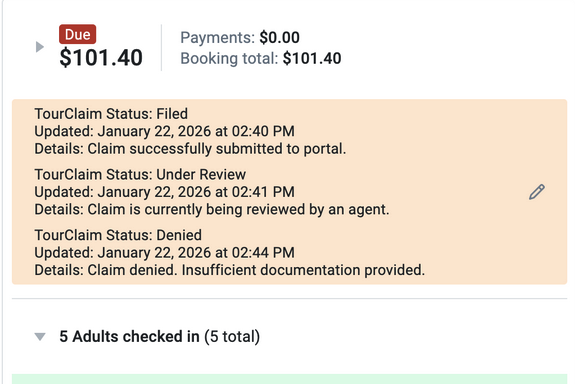
Each update tells you three things at a glance:
- Status — where the claim is: Filed, Under Review, Approved/Paid, or Denied.
- Card support — whether the guest’s card is supported or unsupported (see below).
- Reason support — whether the cancellation reason is one TourClaim recognizes as commonly covered.
Notes only — unless you use Auto Cancel
TourClaim adds notes to the booking. It never changes amounts, issues refunds, or alters your policies. The one exception is Auto Cancel: if your company has it turned on, TourClaim also releases the booking a guest filed a claim for.
Auto Cancel: TourClaim releases the booking for you
If your company has Auto Cancel turned on, a guest who files a TourClaim for an upcoming trip doesn’t need to call you to cancel. TourClaim tells the guest it will release the booking, gives them time to change their mind, and then cancels it in FareHarbor so the spots go back on sale.
Your staff don’t need to do anything.
No cancelling by hand and no reply to the guest. TourClaim sends the guest’s emails and makes the cancellation in FareHarbor.
Auto Cancel is for FareHarbor operators only, and it stays off unless your company asks TourClaim to turn it on.
What the guest sees
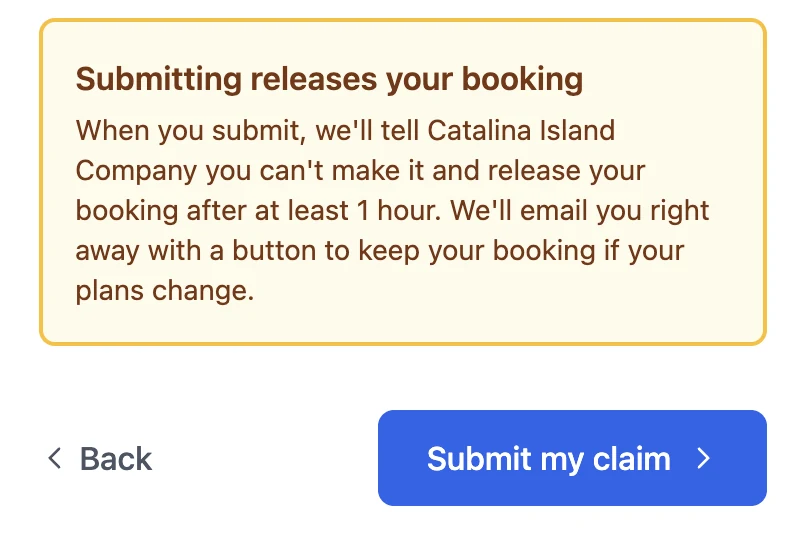
1. A notice before they submit. The last step of the claim form tells the guest that submitting releases their booking, how soon, and that they’ll get an email with a button to keep it.
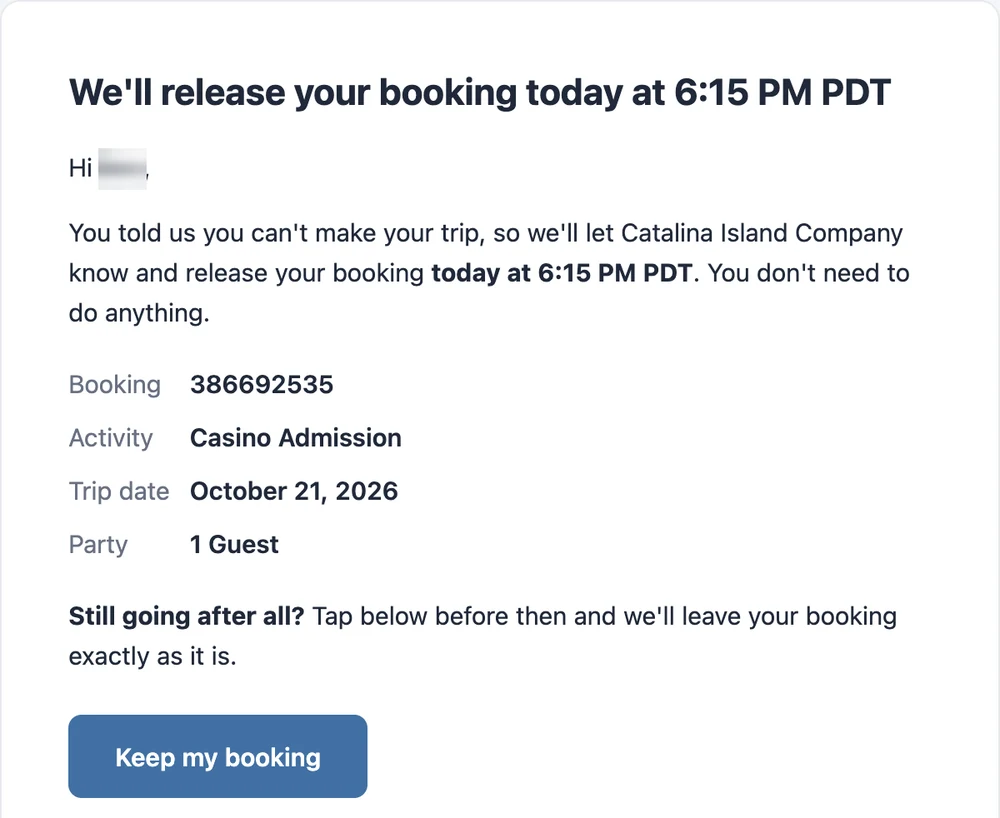
2. An email right away. TourClaim emails the guest the exact time the booking will be released, in your time zone, with a Keep my booking button. The release is always at least an hour after that email goes out. If the contact on the FareHarbor booking isn’t the person who filed, that contact gets the email too.
3. A confirmation once it’s done. After FareHarbor shows the booking as cancelled, TourClaim emails the guest that the booking has been released. Their card claim carries on separately.
What you see in FareHarbor
When the claim comes in, TourClaim’s note appears on the booking as usual. Shortly after the release time, the booking’s status changes to Cancelled and its history records the cancellation, made by TourClaim’s FareHarbor user (Copernican in this example).
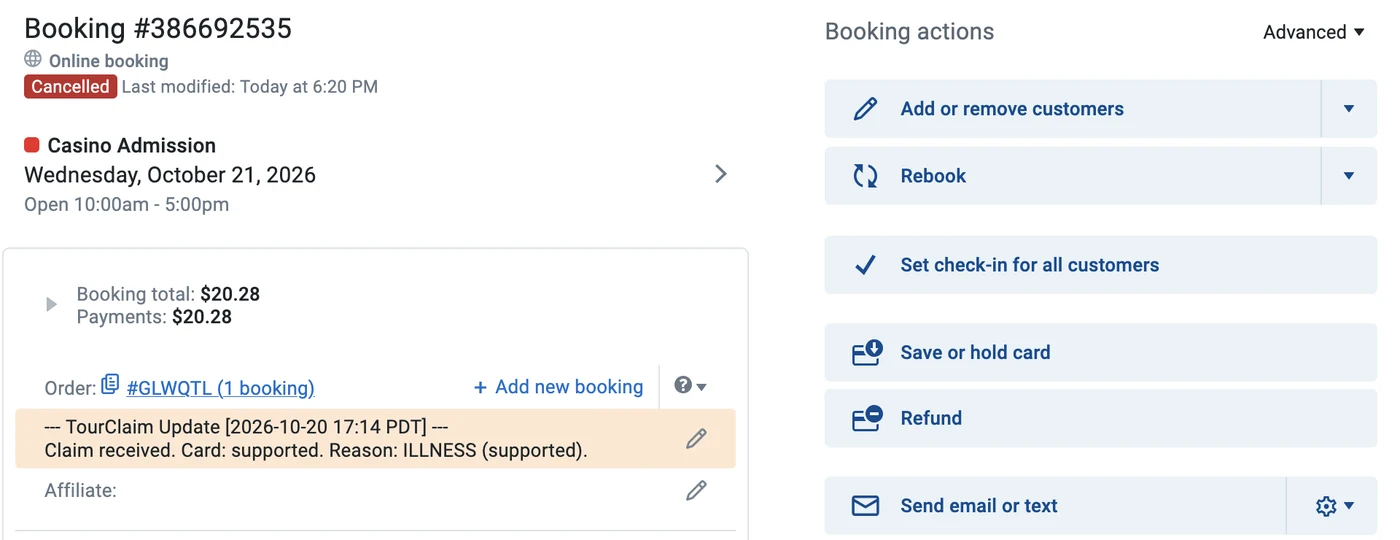
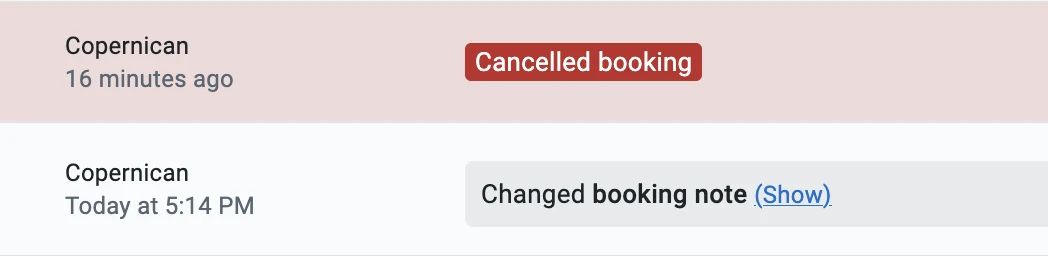
Releasing a booking doesn’t refund it. The payment stays on the booking, and whether to refund is still your call under your normal policy — see Before you refund a guest.
If the guest changes their mind
To stop a cancellation, have the guest press “Keep my booking”
If a guest tells you they’re going after all, ask them to open the email from TourClaim and press Keep my booking before the time it names. That stops the release and leaves the booking exactly as it is. You don’t need to change anything in FareHarbor.
- Keeping the booking also withdraws the guest’s TourClaim while it can still be withdrawn online. If the claim is already being processed, the release still stops, the claim stays open, and TourClaim’s team follows up with the guest.
- Once the release time has passed, the button can’t bring the booking back. If the guest still wants to go, rebook them as you normally would.
- If the guest can’t find the email, ask them to check their spam folder. If it’s still missing, email support@getcopernican.com as early as you can: TourClaim’s team can hold a release that hasn’t started yet.
When TourClaim leaves the booking alone
TourClaim doesn’t release the booking when:
- the trip is less than 24 hours away;
- the booking is already cancelled or rebooked in FareHarbor, or marked as a no-show;
- the person who filed doesn’t match the booking, or the booking has no email address on it;
- the guest’s reason sounds like a change (“I booked the wrong date”) rather than a cancellation.
If the booking is still active, TourClaim emails the guest that it was not released and to contact you directly if they still need to cancel.
What “supported” vs “unsupported” means
You’ll see these two words in the booking notes — for the card and for the reason. Together they tell you how likely the guest is to be reimbursed through their card.
Supported vs unsupported card
TourClaim has verified the travel-protection benefits on this card product against the benefit administrator’s current policy. There’s a known coverage path to file against.
TourClaim hasn’t confirmed qualifying travel protection on this card — either it doesn’t carry these benefits (common with debit/prepaid/basic cards), or it’s still being researched.
Supported vs unsupported reason
A cancellation reason TourClaim recognizes as commonly covered — illness, injury, severe weather, or airline/travel disruption.
A reason that falls outside the automatically-recognized set. It may still be reviewed by a TourClaim specialist, but it isn’t auto-marked “supported” in the note.
How a card is checked — and kept current
Card coverage isn’t guesswork. When a guest’s card hasn’t been seen before, TourClaim researches its benefits against the card benefit administrator’s published policy, a TourClaim specialist reviews and approves the findings, and the card is then marked supported. Because administrators change their terms over time, supported cards are re-checked and updated so the status stays accurate. Until a card is verified, it stays unsupported rather than being assumed.
Before you refund a guest
This is the part that protects your revenue. When a guest reaches out and you’re inclined to refund them, check the TourClaim note on the booking first. If the card is supported and the reason is supported, the guest likely has a real path to be reimbursed by their bank — so a refund from you may be unnecessary, and refunding now risks paying the guest twice.
Wait for the claim outcome before refunding
If a claim is in progress for a supported card and supported reason, hold off. Let TourClaim’s claim run and watch the status in the booking notes. Refund only if the claim is denied — or if the card/reason is unsupported and there’s no claim path.
| What the booking note shows | What it means | What to do |
|---|---|---|
| Card supported & Reason supported, status Filed / Under Review | Strong path to reimbursement through the card; claim is active. | Hold off Don’t refund yet — watch the status. |
| Status Approved / Paid | The guest is being reimbursed by their bank. | No refund That’s the goal — you keep the revenue. |
| Status Denied | The card didn’t cover this one. | Now apply your normal cancellation policy and decide on a refund. |
| Card unsupported or Reason unsupported | A card claim path is unlikely. | Handle per your normal cancellation policy. |
When in doubt, leave the claim to run and check the notes — or escalate to a manager. A few days’ patience can mean the guest is made whole and you keep the booking.
When to mention TourClaim
The simplest trigger: any time a guest is upset about losing money on a booking you can’t refund. Specifically, when a guest:
- Cancels a reservation unexpectedly
- Misses a tour due to illness or injury
- Is affected by severe weather
- Has travel delays or an airline cancellation that prevents attendance
- Has a death or serious illness in the family
- Can’t attend for another event that may be covered by their card benefits
What to provide
Most information is collected from the guest or pulled automatically from FareHarbor — not from staff. Only if TourClaim requests it, provide standard records you already keep:
- Booking confirmation, receipt, or invoice
- Cancellation confirmation and the date cancelled
- Proof the reservation was non-refundable (if applicable)
- Amount paid, and amount refunded (if any)
Requests usually arrive by email and name a specific booking. Forward the document through your normal channel — no cover letter, no opinion on the claim. Medical documentation comes from the guest’s provider, never from your staff.
What to do — and not do
The golden rule: refer, don’t interpret.
Do
- Refer guests to the TourClaim link
- Provide booking records when asked
- Check the booking note before refunding
- Reassure guests that TourClaim texts/emails are legitimate
- Point a guest who’s going after all to Keep my booking
- Escalate unusual situations to a manager
Don’t
- Promise a guest they’ll qualify
- Interpret credit card benefit terms
- Give legal or insurance advice
- Estimate approval chances or timelines
- Refund a live, supported claim before its outcome
What to say
Frequently asked questions
Does using TourClaim guarantee reimbursement?
No. Claims are evaluated by the credit card benefit administrator according to the terms and conditions of the card’s coverage.
Is TourClaim connected to our company?
No. TourClaim is an independent service that assists customers with preparing and submitting eligible claims.
How does TourClaim already have our booking information?
It reads the booking directly from your FareHarbor account when the guest starts a claim. It only looks the booking up and adds status notes — unless your company has turned on Auto Cancel, which also releases the booking the guest filed for.
With Auto Cancel on, do I need to cancel the booking myself?
No. TourClaim emails the guest, waits until the release time it named, and cancels the booking in FareHarbor. If the guest decides to go after all, they press Keep my booking in that email and the booking stays as it is. See Auto Cancel.
A guest says TourClaim is texting them — is that real?
Yes. For many operators, TourClaim uses an automated SMS assistant to help guests gather documents and finish their claim. It’s expected and legitimate.
Should I refund a guest while their claim is open?
Not if the booking note shows a supported card and supported reason with a live claim — you’d risk paying the guest twice. Wait for the outcome in the notes, and refund only if it’s denied or there’s no claim path. See Before you refund a guest.
Quick reference
A guest cancels unexpectedly, asks about recovering costs, the reservation is non-refundable, or a travel disruption prevented attendance.
Promise reimbursement, interpret benefit terms, give legal/insurance advice, or refund a live supported claim before its outcome.
One line to memorize
“We can’t refund this under our policy, but your credit card may include trip protection — TourClaim can check your eligibility and file the claim for you.”